Subscribe

Search

Categories

Archives

Stuff

Photos

    www.flickr.com
    This is a Flickr badge showing public photos from legaltech. Make your own badge here.

Quotes

We have choices to make and those choices make us.

-Brophy Prep Freshman Retreat

View Sean Tierney's profile on LinkedIn


Urgency vs. Importance and the 5th system for scattered todos

March 14th, 2007 by sean

I wrote a little while ago about this concept of “if you’ve highlighted everything…” and why it’s good to keep your main list of current assaults lean. I wanted to explain the concept of urgency vs. importance that I mentioned in that post and then propose a simple addition to the 4 mechanisms for managing scattered todo’s that I use.

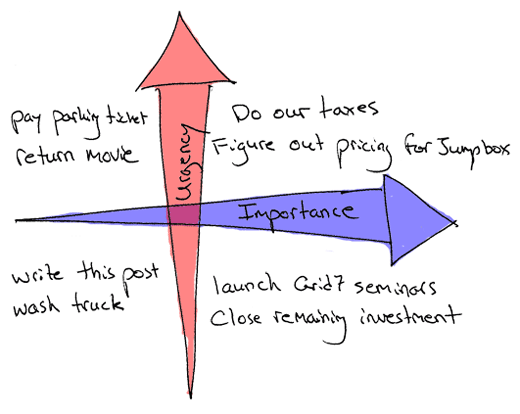
Urgency and importance are completely independent of one another. Once you understand that, doing triage on a todo list becomes way easier. The best way to understand this concept is through a simple graph of tasks:

UrgencyVImportance.gif

I’ve found once you are able to visualize your todo list in this 2-d fashion it helps in a couple respects:

  1. You’re able to tease apart those items which truly have the ability to advance your cause from the ones that are just stressing you out because they’re yelling for your immediate attention. It’s an important distinction and critical to being effective.
  2. If you keep your items stored visually in this fashion it lets you quickly handle items in the right quadrant depending on the situation. You should obviously try to work on the right-most items as much as possible while giving attention to the upper right quadrant first. During the day, forget that the left quadrants even exist. When you’re decompressing, go to the lower-left. When you’re catching up on errands, upper-left. The point is you always know what you should be doing.
  3. This leads to what David Allen calls the “mind like water” feeling of being at peace even in the face of massive amounts of todo items. Even when there’s a kajillion things going on, there’s something about having an accurate picture of the field and knowing that your items are stored in a trusted system and you’re knocking out the priorities first.

Where I disagree with the orthodox GTD cultish philosophy that Allen espouses is in the idea that you should try to cram everything into a single trusted system. I wrote about the 4 mechanisms I used to do what I call “Scattered Todo Management” and having tried orthodox GTD, I found this to be more suited to the way I work. Anytime you find yourself uncomfortable contorting your processes to match the latest and greatest productivity religion, I think that’s bad. Ultimately you should learn the fundamentals of various different productivity religions and pick and choose the elements that work for you and make your own.

So this is the 5th System for Scattered Todo Management that I’ve been using and want to share. It’s a simple way of easily deferring and categorizing tasks while still making immediate steps toward the solution and preventing build-up of crap in your inbox:

  1. Mentally superimpose the above graph on your desktop (or if you really want, draw it as your background).
  2. Drag the resources (URL locations, documents, graphics, audio files, forms, whatever you’re working with) to the appropriate quadrants on your desktop. URLs are the exact pages on a site with which you need to do whatever task it is. You can chunk a bunch of related items for a discreet task in a folder.
  3. Now rename the filenames to “verb-noun” (ie. “handle tax returns” URL item links to the online filing page on the IRS.gov site)

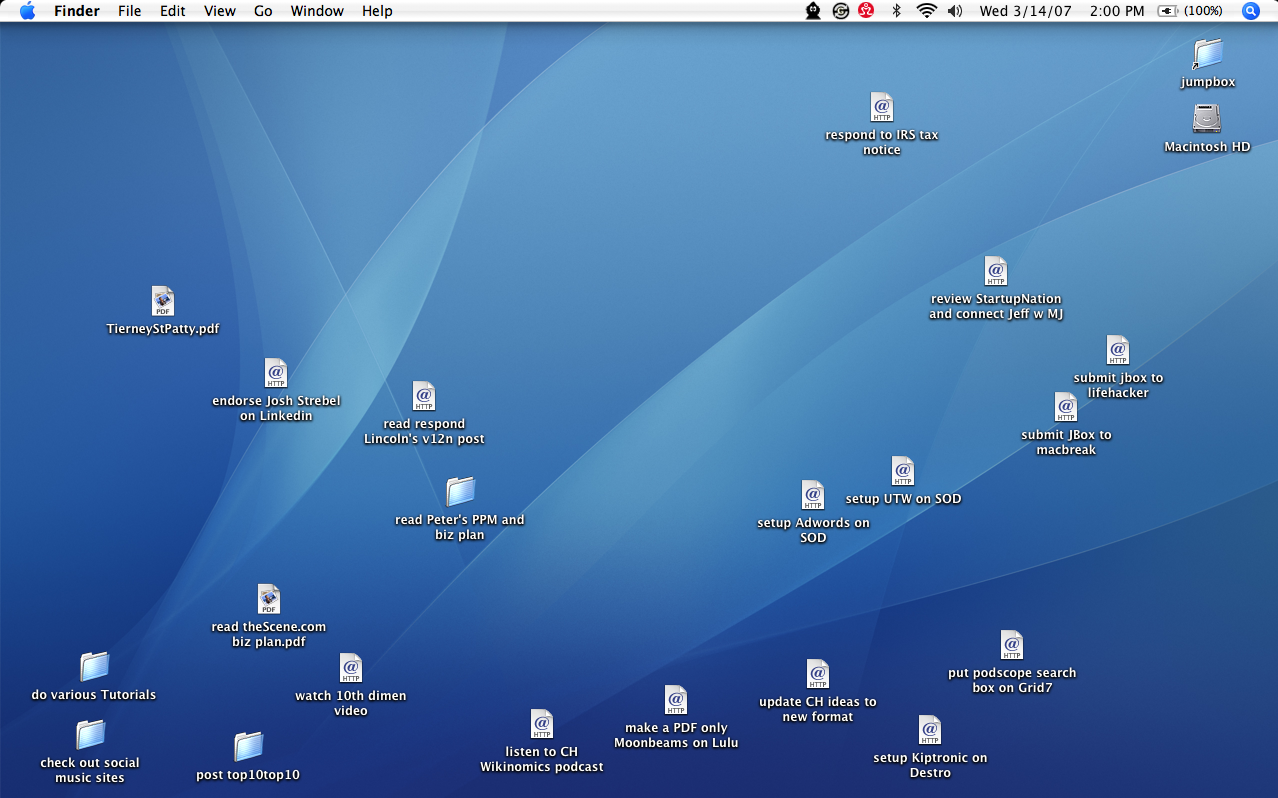
That’s the essence of it and simple as it seems, it’s a way to have a big picture view of the tasks on your plate and to defer the low-priority items while still “teeing them up” so you don’t have to weed through a daunting inbox of emails to figure out what each task involves. This is my desktop right now:


visualDesktopTriage.gif


As you can see items are roughly thrown into the spots that correlate with the position on the urgency vs. priority graph above. I’ve found this technique helpful along with the other 4 systems to manage the things I’m doing every day. If you have a homegrown productivity technique that works well for you, I would love to hear about it.


Productivity blinders for gmail users

February 13th, 2007 by sean
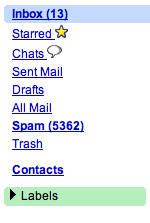
GmailLabelsOpen.png

BAD

Given the interest around applications you use to hide distractions from yourself and reward yourself for spending time productively, here is simple technique you can use that’s already available in gmail:

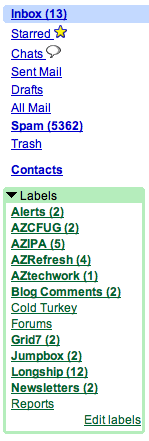
Create labels and apply filters to non-urgent emails from discussion lists and automated alerts and newsletters. Use the “skip inbox” option to route these communications away from your inbox keeping it reserved for unanticipated communications. Nothing new here - if you use Gmail this is probably how you do it already. The secret: collapse the labels tab so you don’t see these messages pile up while you work.

GmailLabelsOpen.png

GOOD

We are insatiably-curious creatures. We pick at scabs and buy scratch ‘n win lotto tickets because we have to see what’s underneath. But the reverse is also true - out of sight, out of mind.

I was looking for a greasemonkey script for firefox that would cover up the labels section in gmail so I could reduce distraction throughout the day and I discovered that the labels tab is collapsible. Use this technique to put non-urgent communications in their place and handle them on your terms instead of reactively answering non-priority email and getting pulled off course.


SpanningSync: sync your iCal with Google Calendar

February 4th, 2007 by sean

Thank you Spanning Sync!

spanningSync.gif

You’ve finally done what no other app has been able to do until now: keep a Treo, Mac and Google calendar in sync. I’ve had the left half of this equation now for a few months using an app called Missing Sync. Spanning sync just re-opened their public beta this morning and makes the right half of the equation now possible. You need to check out their screencast to understand why this is so huge.

This gives us the capability to overlay our calendars in the office and book events for each other. There has always been the webdav server option which we considered for viewing each other’s calendars but that solution only gives you a one-way export to broadcast iCal to a server. Spanning sync means I can add a meeting via Google, iCal or Treo and it will appear in the other locations. And then I can selectively expose and consume other calendars. They’re bridged silently through the Google Calendar interface but I never have to use the Google interface - I can continue to interact via iCal or my Treo.
SpanningSyncspike.png

This should be good as well for working with external vendors as it lets you expose your calendar at varying degrees with anyone else who has a gmail account. For instance, I can consume a calendar shared with an agent booking engagements on my behalf and have those dates propagate all the way into my Treo. 10min is the shortest interval to sync so unless you’re booking at an insane frequency, there should be little danger of conflicts. This is major as evidenced by the traffic spike that temporarily closed the spanning sync beta this past week. Kudos SpanningSync on wonderful piece of software.


If you have highlighted everything…

January 29th, 2007 by sean

highlighter.jpg“then you’ve highlighted nothing,” as my friend Kobe used to say.

This is going to be a visually-painful way of making this point but hopefully it makes the lesson memorable. In college when I would study in a group I would notice that other students highlighted stuff from the chapters that they had read. Nothing wrong with marking up a text book - it generally facilitates greater recall - but the problem was that they would highlight 80% of the text on a page so that when finished, the majority of the book’s verbiage was bright yellow.

The obvious problem with this practice is that it doesn’t get you anything. The more detrimental side effect though is that not only does it not enhance your ability to process and extract meaningful associations from the text while reading, it detracts from your ability to review the text later. Like the fable of the Boy Who Cried Wolf, your brain eventually habituates the highlighting and stops assigning any meaningful significance- it becomes merely a distracting nuisance.

takeaway So how does this possibly relate to situations beyond highlighted textbooks? It translates directly across to how we manage our todo’s and assign priority to tasks. The main takeaway here is this:

However you express priority in your todo list, make sure that only a few items at any given time are prioritized.

I recommend the “dot-size” priority trick if you use a whiteboard or notebook. Anytime you have more than 20% of your items flagged as priority, I guarantee that your effectiveness on tackling any one item will be diluted. The mindset when assigning priority should be “what three things this week will have the greatest impact on advancing our cause?” Notice this is different than “what are the three most pressing items on my plate this week?” The latter is a reactive vs. proactive approach - you can get into reactive mode where you let your todo list drive you. Urgency is completely independent of Importance - but that’s a topic for another post…

Hopefully if you’ve ben able to tolerate the highlighting and have read this far, the message will have hit home and resonate with you. And the next time you find yourself escalating a bunch of todo items, you’ll remember the words of my friend Kobe and know that “when you’ve highlighted everything, you’ve highlighted nothing.


4 Systems to Manage “Scattered” Todos and Why Orthodox GTD is BAD

December 10th, 2006 by sean

ScateredTodosMain.jpg

David Allen has a massive following with his “Getting Things Done” methodology for managing todo items. While it incorporates many good ideas, it’s troubling to see people expending a ton of energy to follow his system to the letter and wasting time wrangling their todo items into the "single trusted system" that he advocates. If it feels like you are contorting yourself for the sake of following the orthodox GTD methodology, consider using a "scattered" approach like this one. I completed GTD a year ago and took lessons from it but ended up with a homegrown approach that involves the above four repositories, each with its own function. I have been using this loose system now for the five months we’ve been running our startup and it has greatly simplified life and given me the "mind like water" state that David Allen proposes is achievable via GTD.

  1. Whiteboard - Whiteboards are collaborative tools that are good for brainstorming with others but they also make a perfect place to broadcast the current focus of each player on the team. This is consistent with Allistair Cockburn’s concept of the "information radiator" and serves as a single place where people can go to understand the current direction and focus of the team. I recommend the "dot size priority trick" for expressing priority of important items. Focus items should be established with input from each player and reviewed periodically to ensure they are not a mandate but rather an agreement.
  2. Ticket System - We use Trac extensively as our main hub for tracking tasks. Trac is the authoritative, multi-user system for all things important to your company. It integrates tightly with Subversion and there is a useful script that lets you close out tickets in Trac by entering "fixed #123" in the notes field as you commit files from SVN. We use Trac not only for development but for all facets of the business. We run Trac and Subversion over SSL and have both handled by the .htaccess for authentication. Both Trac and SVN can be driven by LDAP users. We currently use Skype for our office phone and record all important calls using Audio Hijack and then store the audio files in SVN. We also scan all critical business documents and put them in source control. Using a ticketing system gives you accountability and reporting so you know that nothing slips through the cracks and have a a way to see a "balance sheet" of the state of the tasks at any time.
  3. PDA - I have a Treo 650 and I use the Palm OS built-in todo list as "swap space" as I’m out and about thinking of new things that need to be done. If the todo is trivial and I can knock out in five minutes when I get back, I’ll do it and check it off without ever entering it into Trac. Otherwise, items get moved off the Treo and turned into Trac tickets once a day. I use Missing Sync and Bluetooth to synchronize everything in my Treo with my Macbook. The todos show up in iCal and you get a full backup of all the data in your PDA so you’re not hosed when it decides to take a swim.
  4. Legal Pad - Having a scratch pad on your desk is key. It’s the most frictionless way to take notes throughout the day and not give any thought to processing them into meaningful or actionable tasks. You are purely capturing the raw ideas as they occur in an unstructured (and ideally visual) fashion and minimizing the distraction from whatever it is you’re engaged in at the time. Mind mapping is a great technique to use with physical note taking but again, it’s worthless if you find yourself contorting your behavior just for the sake of using mind maps. Notes on the legal pad should be reviewed periodically and converted to either todo’s in the PDA or in the ticket system.

Nothing against GTD - it works for a lot of people and I’ve heard great things about Kinkless GTD. We should expect Omnifocus to be another solid app to come from the Omni guys. The point to consider though is that GTD has become a veritable religion when it should be thought of as a best practices framework of behaviors from which you develop your own system. Learn it but then synthesize it, chop it up and take the aspects you like piecemeal from it and other systems to create your own style. In the end it’s not how closely you can conform to orthodox GTD, it’s about how much you can accomplish while reducing stress and elimating the "open loops". I moderated a discussion yesterday on project management with Trac at the first ever Barcamp in Phoenix. If we get the video capture from that session, I’ll post it here in the comment field.


6 ways to pimp your del.icio.us

July 22nd, 2006 by sean

Del.icio.us is great. Here’s six ideas on how to get more out of it:

  1. pimpMyDelicious.jpgOffline browsing of your “toRead” items - Many people have a toRead tag they use to flag pages they plan to review later. Realistically with the massive daily influx of new info, I rarely get a chance to come back to these items when I’m on the computer. However, when I’m away from the computer waiting in a restaurant, having news feeds in my phone is perfect for killing time. Rather than read random news though, why not read what you already bookmarked? While most mobile phones support web browsing and you could do it that way, surfing over your phone’s connection sucks and this isn’t time-sensitive info we’re talking about since it clearly wasn’t critical enough for you to read it at the time you bookmarked it. Instead, use an offline reader like Avantgo to cache these items each time you sync your phone. Create a free account, download and install their client to your phone, login and get the autochannel bookmarklet here and then navigate to your toRead page. Use the autochannel bookmarklet to add this to your phone, set the link depth to “1″ and check the box to “follow off-site links.” This will grab your latest list of toRead items and cache them to your phone each time you sync.
  2. Private saving for ubiquitous admin access - One of the advantages of using del.icio.us for your bookmarks is that you have access to them from any computer. You may have bookmarks to administrative features or sensitive info that you don’t want to share publicly though. Use the “private saving” feature in del.icio.us to conceal these bookmarks. You have to first enable it in under “settings > experimental > private saving.” Once you do this you’ll have a new checkbox on your posting interface in the upper-right that says “do not share” - this will make it so only when you’re logged into your account can you see these bookmarks.
  3. Mind read your mentors - If you’re reading this then we already know you read blogs. And odds are that you have a few people you follow regularly who are consistently on-point with their thinking and what they explore and write about - your mentors. Unlike reading their blog though (the things they explicitly tell you) you can find their del.icio.us account and monitor it via RSS to follow their latest bookmarks. There’s a link at the bottom of every page on del.icio.us that allows you to get a feed of things that change. In this way, you know not just what these alphanerds are saying but also what they’re thinking about.
  4. Expose yourself - The reciprocal thought to the above is that as an author of a blog yourself, you can expose your own bookmarks via your blog and make it easy for others to see what you’re thinking about. There are tons of options on how to pull this off. Personally I dislike the XML-RPC method of auto-posting del.icio.us links as blog entries - I prefer the linkroll javascript method of displaying the list in the nav as it keeps the most current ones on every page of your blog and doesn’t push them via RSS to people who just want to read what you write. They can always use the method above if they want to subscribe to your del.icio.us feed.
  5. Watch the watchers - Be a bit of a “del.icio.us voyeur” and find out who has bookmarked things you’ve written and see what else these people are reading. You achieve this by finding an entry of yours that has been bookmarked by others and looking under the posting history column on the right to see the linked usernames. Clicking through theses user names will show you their account allow you to see other stuff they follow.
  6. Create an open public dialogue on your site - Chris Pirillo proposed the idea of “freedbacking” recently whereby site owners encourage their visitors to tag their pages with the term “freedbacking” and make comments in the notes field to enable public feedback viewable to all. This is essentially what we’ve been doing on our Grid7 site since January via an iFrame on this page. You can do the same on your site and create this type of open public dialogue with your visitors. Keep in mind they may say bad things about you and it will appear on your site but doing it this way creates a “public whipping post” and forces you to deal with it immediately at risk of continued public embarrasment. Ultimately this creates an active community and more loyal following around your offering because people know you aren’t burying their criticisms and feedback.

It goes without saying that the Firefox extension for del.icio.us is a must if you post enough and as long as you’re at it, you might as well snag the FF Better Search extension so you have thumbnail images on all your del.icio.us links. If you’re new to del.icio.us and have a bunch of existing bookmarks from your web browser, you can use their nifty import feature to move all your bookmarks over and have it assign the most popular tags to the ones it already knows about. I don’t use their network feature because it doesn’t get me anything I can’t do via RSS. The people who I want to monitor I just follow individually via RSS by creating a “del.icio.us recon” folder in my bloglines and subscribing to each of their feeds. It’s better because they are now separated out by individual rather than being munged into one big list and they still have chronology.

If you have other ideas for how to get more out of del.icio.us, please share them in the comments section.


« Previous Entries