


Here’s a simple method I recently discovered for shrinking the size of PDF’s on a Mac. It was able to convert a 5MB PDF down to 800k while maintaining perfectly readable quality. The key is to re-save the PDF applying a quartz filter to compress the images. Here’s the steps to make it work:
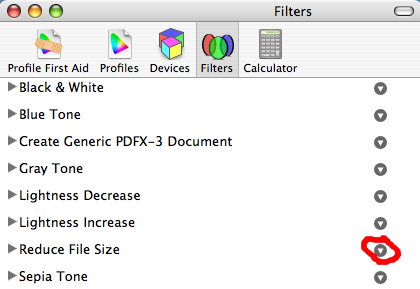
- Open your Colorsync Utility, click on the “Filters” tab and duplicate the one called “Reduce File Size.”
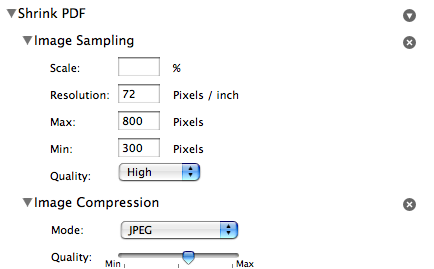
- You’ll want to bump up the quality a bit from the default on that preset- I found the following settings to be about right to achieve a 1/6th reduction in file size while preserving readability:
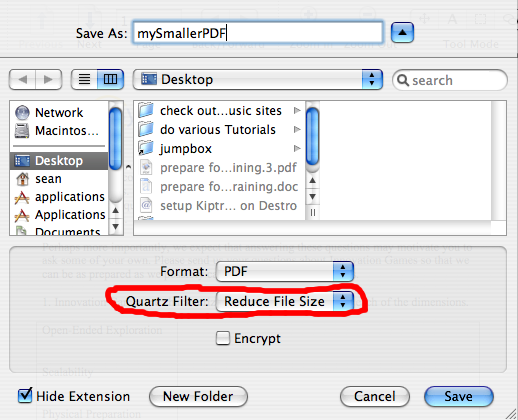
- Now close out of the colorsync utility and open up one of your bloated PDFs. Choose the File > Save As option and on the save dialogue apply the quartz filter you just set up.
This has been helpful in shrinking down PDF’s that come out of my scanner. The document scanner I have (Canon MP830) is neat because it has an automatic document feeder and the ability to turn a big document into a PDF on my desktop by pushing a single button, but for whatever reason the lowest resolution setting still produces these massive files. I looked around and found various open source programs that would do the same thing but the quartz filter mechanism built into Mac OS X works perfectly and requires no extra software. Thanks to the good people on this forum for pointing out this handy technique.




[…] It turns out that the default approach to creating PDFs isn’t very smart! Sure they’ll be beautiful and hi-res and all that, but they’re too fucking big! A wee bit of squirelling around found me the answer and so here you go … it all comes down to previewing in Preview and then saving a PDF with an appropriate Quartz filter. Here’s a post on the Apple Support site with some pre-done filters, and here’s another blog post which explains about how to create more filters yourself. […]
Thank you very much!
I had looking for this tip a lot.
"and here’s another blog post which explains about how to create more filters yourself…" the link is AWOL.
Dave
@Dave & Jojo, holy ingratitude… this post is 3yrs old (look at the date in the URL). I have no idea what version my OS was at the time. You're welcome for steering you to the mechanism that allows you to optimize PDF's (even if the specifics of the process are slightly different now). jeeesh, tough crowd…
Sean
No ingratitude. Just thought you'd like to keep your page up-to-date.
On the internet, nothing ever expires…
Dave
FINALLY. Thanks for the post. This is the only post I could find that helped me reduce my 700kb file to a 170kb file (less than 500 kb was what i was going for) without reducing the quality to the point of unreadability. It is a very clever solution. THANK YOU.
THANKS A LOT!!! I work at the university and use to give my slides to the students as pdfs. Since I have a Mac, I only managed to create huge pdfs out of my powerpoint presentations. Since I know this trick, I came from 32 MB to 3,7 MB on the first file I tried!
Really helpful, keep updating with such nice stuff!!
I adapted the filters, but unfortunately I don't see the box "quartz filter" when I do a "save as" of the file, so I cannot apply the new settings in the filter…
AWESOME TIP! dont even need a new program, thanks!!
I owe you HUGE! I've spent the last hour trying to get a 3-page, color, scanned-to-PDF document down to size, and all other suggestions and tips failed — EXCEPT YOURS! Thank you very much!!!!
This is a huge help now that my mission is accepting scanned receipts. I set the resolution to 150 and the Max to 1200 and can hardly see any difference, yet the files are still about 1/6 the size or more. 1.1 MB image files are now 98 KB with virtually no discernible loss!
I might add that once you duplicate the filter and name it what you want, it will show up in the Preview Save As… menu.
Also, since I am now moving to a paperless office, this is a tremendous help. Thanks so much!
Andy, thanks man. You just made me look wicked smart in front of my techy smart boss …
hi, I just Follow every step, and nothing changes! wonder why!?
the one detail I found was missing is this: when you try to open the 'bloated' pdf file, you can't because it is locked. so you click on 'create a duplicate' in the drop down [instead of save a version] and then click on edit>save whereupon the drop down DOES give you the quartz filter, and allows you to save the smaller size, which you have set up. Thanks so much to the clever author of this idea, I never would have found it out myself, and have been struggling with HUGE pdf files…
For me I got better results with these settings: –
Scale: 100%
Resolution: (empty)
Max: 800 Pixels
Min: 300 Pixels
Quality: Medium
Mode: JPEG
Quality: Just a smidgen higher
This got my 189MB PDF down to just under 20MB, and the images were still good.
Oh thanks btw – saved by bacon!
Awesome, with all the missing points added by others, I was able to do it! FANTASTIC! THANK YOU!
If the above still isn't making the quartz filter appear, try this:
Right click the PDF file you desire to work with and then select "Open with…"
Select the "Colorsync Utility" application
The Colorsync Utility will open up with your PDF file
At the bottom of Colorsync Utility status bar, you can select the quartz filter you wish to apply (including any custom ones you made)
Press "Apply"
Save the document
Thanks so much. Ive spent hours trying to find this. It just reduced from 10MB to 400Kb!
It's not showing up in my QuartzFilter when I go to Preview.. HELP!
Trin, this post is 5yrs old and apparently some things have changed in OSX. Read through the comments – people have updated what you need to do differently. cheers
Wonderful. Worked like a charm for me. I had to play around with the parameters on the filter a little, but now I can reduce pdf documents to basically whatever quality I want, and they're a manageable size.
I swear, this restores my faith in humanity…
Awesome Kit. Glad you got it working and found the tutorial useful.
Thanks a lot I've been looking how to change the reduced file filter for a while really uselful!
Thank you a lot…. Sean and Kelly
Sean's blog together with Kelly's comment helped me to reduced 18MB pdf to 800kb pdf
Kudos!!!
Sathya
(sathya@toobler.com)
An even easier solution is to use http://smallpdf.com for existing files. I just got a 85% reduction. Does it reduce that much for you too?