


Jun 12
I had a terrible time trying to get a high-quality movie produced from a simple screen capture yesterday. After much googling it seemed there was no consensus on how to produce a quality screencast using iMovie. I solicited the advice of the helpful Refresh Phx people and after some tinkering found the export settings that produce an acceptable result. I captured the screen video using a neat little app called iShowU (which is like a shareware Camtasia for the Mac). I then brought the clips into iMovie. The first attempt at exporting produced this which was unacceptable quality. The key to getting the quality result involved these things:
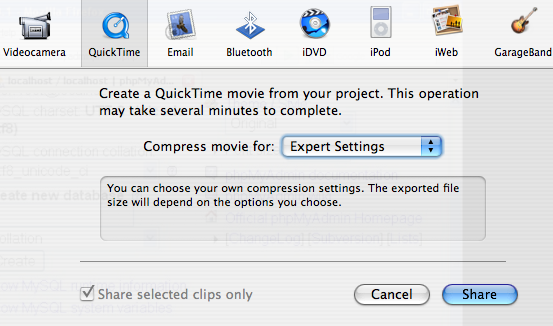
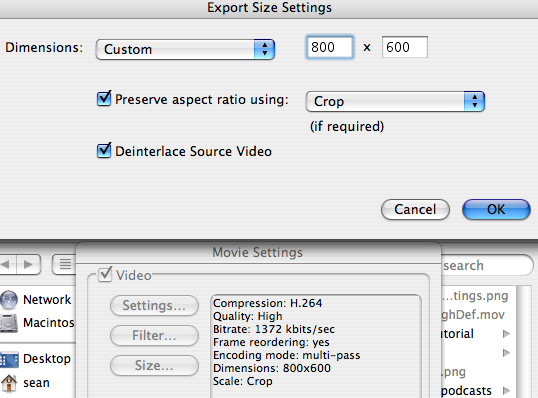
The final result ended up like which is not perfect but looks WAY better than the default output.


Hey Sean, thanks for sharing! I’ve used Camtasia (Windows free trial & was thinking of purchasing) with great results and was hoping to find something similar for the Mac. And from the looks of your screen capture, it appears that this might just do the trick. Out of curiosity, are you using Bootcamp to run Windows on your Mac or are you just using two separate computers?
Tomas- no bootcamp- I’m running a WinXP instance under Parallels on my Mac. Parallels is a virtualization technology like VMware that has a more established product for the Mac, although VMware is really making strides with their Fusion beta.
iShowU seems to be pretty good for screen capture on the Mac- the files it produces are rather large though (1.2 GB) compared to the ones coming out of Camtasia (20 MB). I probably just need to futz with the compression settings in iShowU to get that filesize down.
sean
If you are looking for another option, it’s a bit expensive, but the features are great and I totally recommend it:
http://www.ambrosiasw.com/utilities/snapzprox/
snapz pro
sean – Thanks for the insight into Parallels. I actually just watched a video of VMware on YouTube and it does look like a sweet application so I might just bite the bullet and give that a try and revert to Parallels if the sky begins to fall around me. :)
rob – Thanks for the link to Snap Pro X 2, it actually is pretty cheap at $69 for the software versus $300+ for the Camtasia software.
[…] How to produce a screencast in iMovie that doesn’t look like crap […]
The first two lines of your post really resembled my situation very well…. I thought I’d be going nuts after trying approximately 2000 different combinations of capture, output and compression settings. But your advice really gave a good result!
Thank you so much!
Great post. Thanks for the help in figuring this out. In my searching today I found out that Camtasia is now available for Mac OS X. Check it out at http://www.techsmith.com/camtasiamac/